
Your Global Partner in Jewelry Manufacturing Worldwide Shipping & Direct Wholesale Pricing
Your Global Partner in Jewelry Manufacturing Worldwide Shipping & Direct Wholesale Pricing
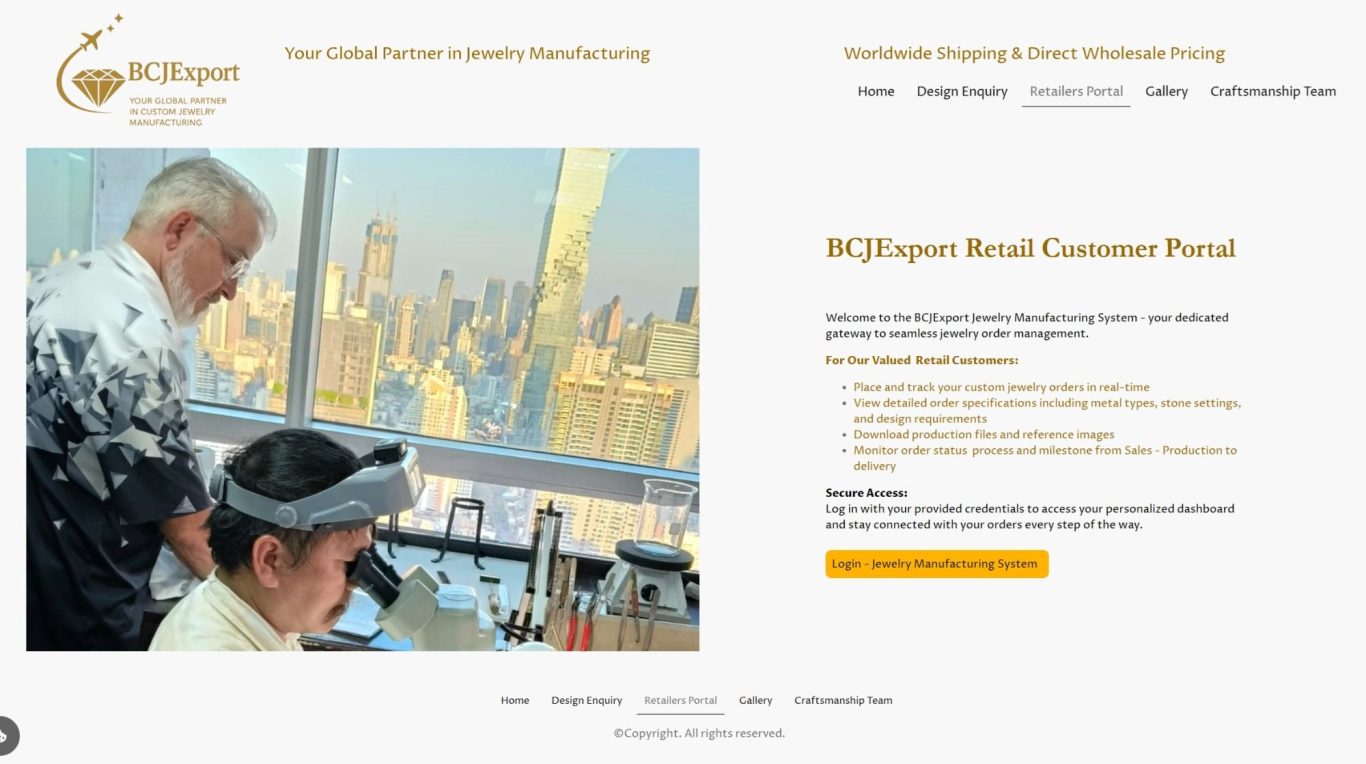
The Retailer Customer Portal by BCJExport Co., Ltd. is designed as a comprehensive solution for our valued retail partners. In today's fast-paced market, effective communication and streamlined transactions are paramount. This portal not only simplifies these processes but also empowers retailers to manage their operations efficiently.

The Retailer Customer Portal offers a multitude of benefits that cater specifically to the varied needs of our retailers. From real-time inventory updates to automated order tracking, every feature is crafted to enhance your business experience. By utilizing this platform, you can significantly reduce administrative burdens and focus on what matters most—growing your business.
Velit expetendis omittantur sed ei, sit suavitate deseruisse sententiae ex. Ne omnium mentitum sea. Hinc interesset usu no, id nec autem quando sadipscing. Vix quem errem malorum et, elit labores reprehendunt ut usu. Nullam ornatus legimus est ei, denique intellegat ex est.
Mel meis equidem intellegebat te. Ut vix nostrud alienum vivendum. Cum ex alia legere ceteros. Eum torquatos rationibus ea. Cu mea postulant reprimique, modus aperiam dignissim nam an, duis porro repudiandae ne duo.
Eum offendit molestiae et. Autem tractatos ea mel. Nam elit assum ad, ponderum tacimates cum eu, primis antiopam ne sea. At porro postea semper his. Habeo eloquentiam eam ex.
No vel natum everti audiam. Causae voluptua in pro, sea legere alterum no. Viderer labitur legimus no usu, at usu primis efficiantur. Nam voluptaria dissentiet comprehensam ea, ex verear menandri consequuntur vis. At decore essent corpora duo, te ius tale simul impedit.
Mutat semper epicuri ex nec. Augue deseruisse ne qui. Eu nam essent persius delenit, te eum oblique conceptam incorrupte, debet adversarium vix ne. Porro facer zril mel eu, dicunt facilis ea sit. Eu usu persius bonorum oportere, nec nibh velit ornatus no.

The Retailer Customer Portal offers a multitude of benefits that cater specifically to the varied needs of our retailers. From real-time inventory updates to automated order tracking, every feature is crafted to enhance your business experience. By utilizing this platform, you can significantly reduce administrative burdens and focus on what matters most—growing your business.
Velit expetendis omittantur sed ei, sit suavitate deseruisse sententiae ex. Ne omnium mentitum sea. Hinc interesset usu no, id nec autem quando sadipscing. Vix quem errem malorum et, elit labores reprehendunt ut usu. Nullam ornatus legimus est ei, denique intellegat ex est.
Mel meis equidem intellegebat te. Ut vix nostrud alienum vivendum. Cum ex alia legere ceteros. Eum torquatos rationibus ea. Cu mea postulant reprimique, modus aperiam dignissim nam an, duis porro repudiandae ne duo.
Eum offendit molestiae et. Autem tractatos ea mel. Nam elit assum ad, ponderum tacimates cum eu, primis antiopam ne sea. At porro postea semper his. Habeo eloquentiam eam ex.
No vel natum everti audiam. Causae voluptua in pro, sea legere alterum no. Viderer labitur legimus no usu, at usu primis efficiantur. Nam voluptaria dissentiet comprehensam ea, ex verear menandri consequuntur vis. At decore essent corpora duo, te ius tale simul impedit.
Mutat semper epicuri ex nec. Augue deseruisse ne qui. Eu nam essent persius delenit, te eum oblique conceptam incorrupte, debet adversarium vix ne. Porro facer zril mel eu, dicunt facilis ea sit. Eu usu persius bonorum oportere, nec nibh velit ornatus no.
Velit expetendis omittantur sed ei, sit suavitate deseruisse sententiae ex. Ne omnium mentitum sea. Hinc interesset usu no, id nec autem quando sadipscing. Vix quem errem malorum et, elit labores reprehendunt ut usu. Nullam ornatus legimus est ei, denique intellegat ex est.
Mel meis equidem intellegebat te. Ut vix nostrud alienum vivendum. Cum ex alia legere ceteros. Eum torquatos rationibus ea. Cu mea postulant reprimique, modus aperiam dignissim nam an, duis porro repudiandae ne duo.
Eum offendit molestiae et. Autem tractatos ea mel. Nam elit assum ad, ponderum tacimates cum eu, primis antiopam ne sea. At porro postea semper his. Habeo eloquentiam eam ex.


Our portal includes essential features tailored for optimal operational performance: easy access to product catalogs, robust order management tools, and a dedicated messaging system to ensure prompt communication. Each feature is intuitively designed to facilitate smoother interactions between retailers and BCJExport Co., Ltd., creating a seamless partnership.
The Retailer Customer Portal fosters enhanced communication channels between BCJExport Co., Ltd. and our retailers. By providing a dedicated space for inquiries and support, we ensure that you receive timely assistance and relevant information exactly when you need it. This commitment to clear communication is what sets us apart.
Transactions can often become bottlenecks in retail operations. However, with the Retailer Customer Portal, you can experience a user-friendly interface that simplifies the ordering process, making it faster and more efficient. Our goal is to create a stress-free environment that promotes business growth and sustainability.
1. Logging In
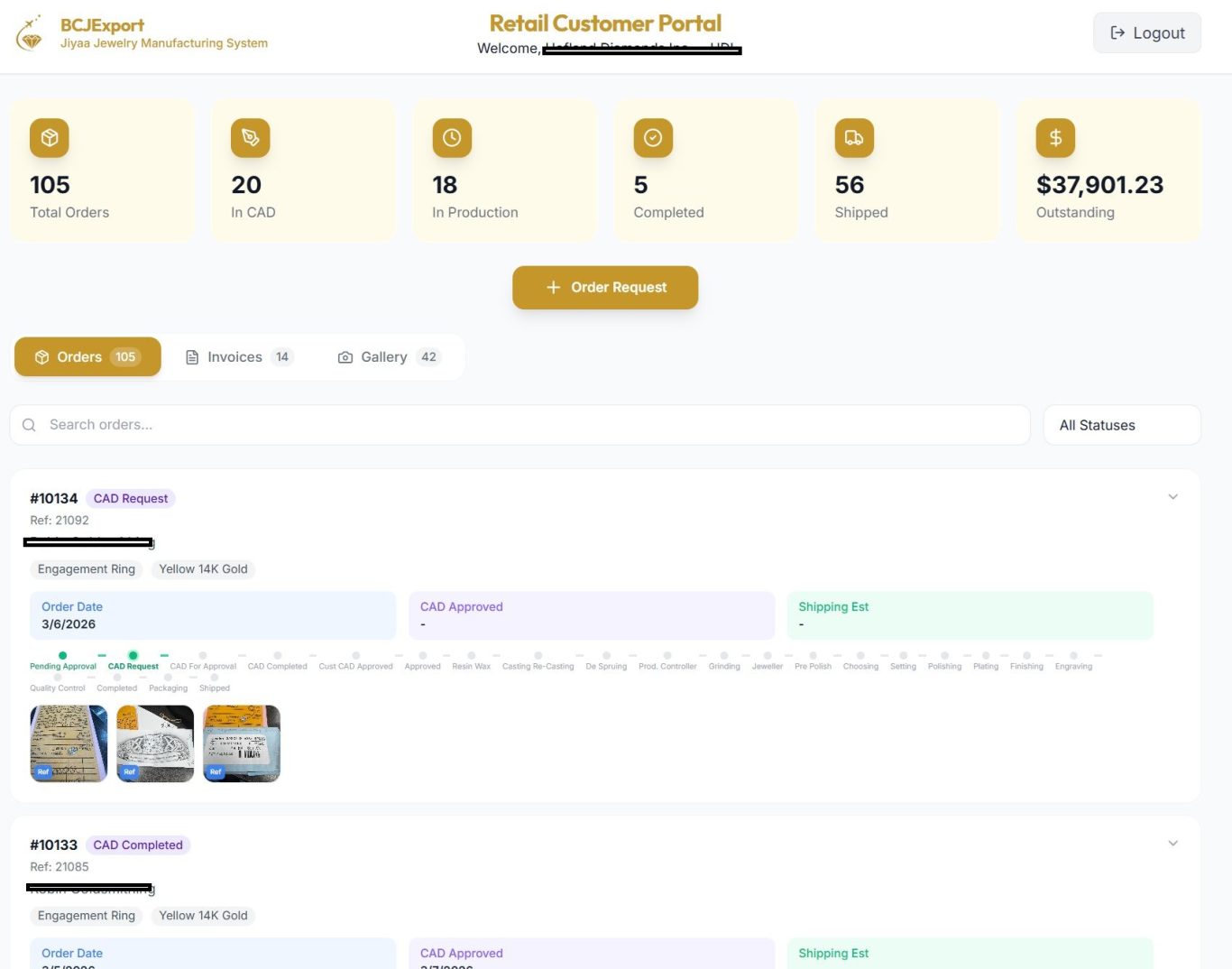
2. Dashboard Overview
-Header
- Summary Cards (6 cards across the top)
These cards give you a quick snapshot of where all your orders stand.
3. Navigation Tabs
Below the summary cards, you will see three tabs:
Click any tab to switch between views.
4. Orders Tab
4.1 Searching and Filtering
4.2 Order Cards
Each order is displayed as a card showing:
Production Progress Steps:
1. Pending Approval
2. CAD Request
3. CAD For Approval
4. CAD Completed
5. Cust CAD Approved
6. Approved
7. Resin Wax
8. Casting Re-Casting
9. De Spruing
10. Prod. Controller
11. Grinding
12. Jeweller
13. Pre Polish
14. Choosing
15. Setting
16. Polishing
17. Plating
18. Finishing
19. Engraving
20. Quality Control
21. Completed
22. Packaging
23. Shipped
Completed steps are shown with filled green dots; future steps are shown with gray dots.
4.3 Viewing Order Details
Click on any order card to expand it. The expanded view shows:
4.4 Order Photos
Below each order card, you will see thumbnail images:
Click any photo to view it in full size. Click outside the photo or the X button to close.
4.5 Approving CAD Designs
When an order reaches the "CAD Completed" status, you will see two buttons:
This is an important step — production cannot begin until you approve the CAD design.
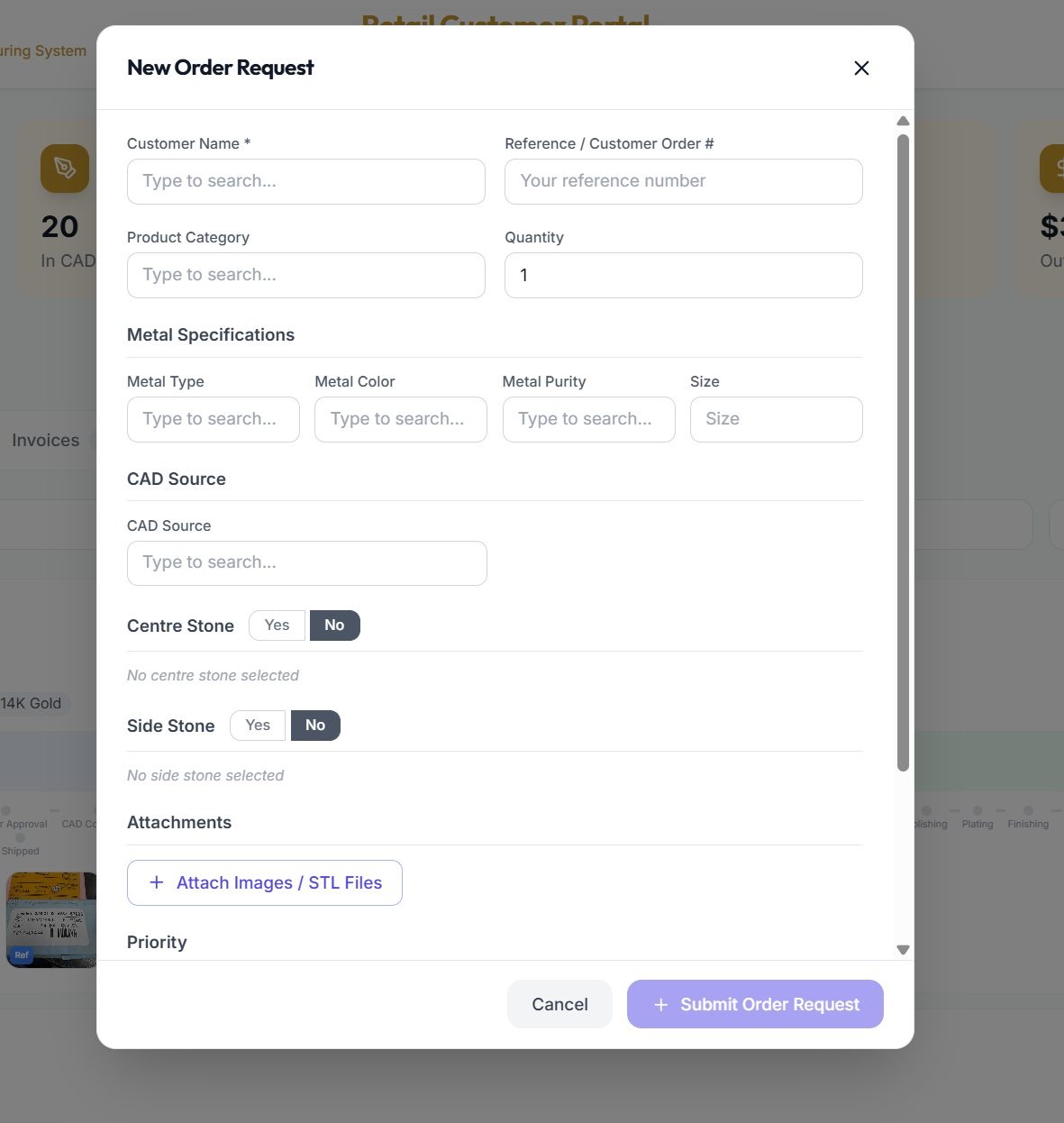
5. Submitting a New Order Request
Click the gold "+ Order Request" button (centered below the summary cards) to submit a new order.
Order Request Form Fields:
Basic Information
Product Details
Metal Specifications
CAD Source
Centre Stone (optional)
Side Stone (optional)
Other Fields
Click "Submit Order Request" to submit. The order will appear with a "Pending Approval" status.
6. Invoices Tab
Click the Invoices tab to view your invoices.
Summary cards at the top:
Each invoice card shows:
7. Gallery Tab
Click the Gallery tab to see finished product photos from all your completed orders.
8. Logging Out
Click the Logout button in the top-right corner of the header to sign out of the portal.
Quick Reference
What you want to do - Where to go
Check order status - Orders tab, find your order
See production progress - Orders tab, look at the progress timeline
Approve a CAD design - Orders tab, find order with "CAD Completed", click "CAD Approved"
Reject a CAD design - Orders tab, click "CAD Not Approved", add feedback
Submit a new order - Click "+ Order Request" button
View invoices - Invoices tab
Check outstanding balance - Summary card "Outstanding" or Invoices tab
View finished photos - Gallery tab or photo thumbnails on each order
Search for an order - Use the search bar on the Orders tab
Filter by status - Use the status dropdown on the Orders tab
BCJExport Co Ltd — Jiyaa Jewelry Manufacturing System
We need your consent to load the translations
We use a third-party service to translate the website content that may collect data about your activity. Please review the details in the privacy policy and accept the service to view the translations.